Installation
This guide covers installing the Calor compiler and setting up your development environment.
Global Tool Install
Install the Calor compiler as a global .NET tool:
dotnet tool install -g calorAfter installation, you can compile Calor files from anywhere:
calor --input program.calr --output program.g.csTo update to the latest version:
dotnet tool update -g calorAI Agent Integration
Calor provides first-class support for AI coding agents. The calor init command sets up your project for AI-assisted development.
Supported AI Agents
| Agent | Flag | What Gets Created |
|---|---|---|
| Claude Code | --ai claude | Skills in .claude/skills/, CLAUDE.md project docs |
| OpenAI Codex | --ai codex | Codex-optimized configuration |
| Google Gemini | --ai gemini | Gemini-optimized configuration |
| GitHub Copilot | --ai github | Copilot-optimized configuration |
Claude Code Integration
Initialize your project for Claude Code:
calor init --ai claudeThis creates:
| File | Purpose |
|---|---|
.claude/skills/calor/SKILL.md | Calor code writing skill with YAML frontmatter |
.claude/skills/calor-convert/SKILL.md | C# to Calor conversion skill |
CLAUDE.md | Project documentation (creates new or updates Calor section) |
Claude Code Commands
After initialization, use these commands in Claude Code:
| Command | Description |
|---|---|
/calor | Write new Calor code with Claude's assistance |
/calor-convert | Convert existing C# code to Calor syntax |
MSBuild Integration
The init command also adds MSBuild targets to your .csproj file for automatic Calor compilation:
# Specify project explicitly
calor init --ai claude --project MyApp.csproj

# Auto-detect single .csproj
calor init --ai claude
After initialization, Calor files compile automatically during dotnet build.
See calor init for complete documentation.
VS Code Extension
Install the Calor VS Code extension for syntax highlighting:
- Open VS Code
- Go to Extensions (Cmd+Shift+X / Ctrl+Shift+X)
- Search for "Calor"
- Click Install
The extension provides:
- Syntax highlighting for
.calrfiles - Calor file icon in the explorer
- Language configuration for comments and brackets
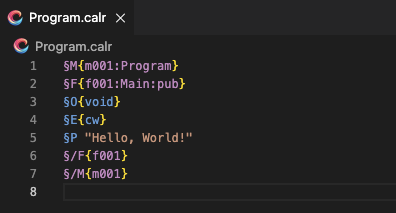
The extension is also available in the editors/vscode directory if you want to install it manually or contribute improvements.
Prerequisites
Before installing Calor, ensure you have:
| Requirement | Version | Check Command |
|---|---|---|
| .NET SDK | 8.0+ | dotnet --version |
| Git | Any recent | git --version |
Installing .NET SDK
macOS (Homebrew):
brew install dotnet-sdkWindows: Download from dotnet.microsoft.com
Linux (Ubuntu/Debian):
sudo apt-get update
sudo apt-get install -y dotnet-sdk-10.0
For Contributors
The sections below are for developers who want to contribute to Calor or build from source. End users can skip this—the global tool install above is all you need.
Clone and Build
If you want to contribute to Calor or build from source:
# Clone the repository
git clone https://github.com/juanmicrosoft/calor.git
cd calor

# Build the entire solution
dotnet build

# Verify the build
dotnet run --project src/Calor.Compiler -- --help
Expected output:
Calor Compiler - Coding Agent Language for Optimized Reasoning

Usage:
  calor --input <file.calr> --output <file.cs>

Options:
  --input, -i    Input Calor source file
  --output, -o   Output C# file
  --help, -h     Show this help message
Project Structure
calor/
├── src/
│   └── Calor.Compiler/      # The Calor compiler
├── samples/
│   └── HelloWorld/         # Sample Calor program
├── tests/
│   ├── E2E/                # End-to-end tests
│   └── Calor.Evaluation/    # Evaluation framework
└── docs/                   # This documentation
Compiling Calor Files
Basic usage:
dotnet run --project src/Calor.Compiler -- \
  --input path/to/your/program.calr \
  --output path/to/output/program.g.cs
The .g.cs extension is a convention indicating "generated C#".
Running Generated Code
After compilation, you need a C# project to run the generated code:
Option 1: Use the HelloWorld Sample
# Compile your Calor file
dotnet run --project src/Calor.Compiler -- \
  --input your-program.calr \
  --output samples/HelloWorld/your-program.g.cs

# Run it (requires modifying HelloWorld.csproj or including the file)
dotnet run --project samples/HelloWorld
Option 2: Create a New Project
# Create a new console project
dotnet new console -o MyCalorProgram
cd MyCalorProgram

# Compile Calor to the project directory
dotnet run --project ../src/Calor.Compiler -- \
  --input ../my-code.calr \
  --output my-code.g.cs

# Run the program
dotnet run
Running Tests
E2E Tests
# macOS/Linux
./tests/E2E/run-tests.sh

# Windows
.\tests\E2E\run-tests.ps1
Evaluation Framework
# Run the evaluation
dotnet run --project tests/Calor.Evaluation -- --output report.json

# Generate markdown report
dotnet run --project tests/Calor.Evaluation -- --output report.md --format markdown
Troubleshooting
Build Errors
"SDK not found":
# Verify .NET is installed
dotnet --info

# If missing, install .NET 10.0 SDK
"Project not found":
# Ensure you're in the calor directory
pwd  # Should show .../calor

# List available projects
ls src/
Runtime Errors
"Main method not found":
- Ensure your Calor code has a public
Mainfunction:Plain Text§F{f001:Main:pub} §O{void} // ... §/F{f001}
Next Steps
- Hello World - Understand Calor syntax
- Syntax Reference - Complete language reference